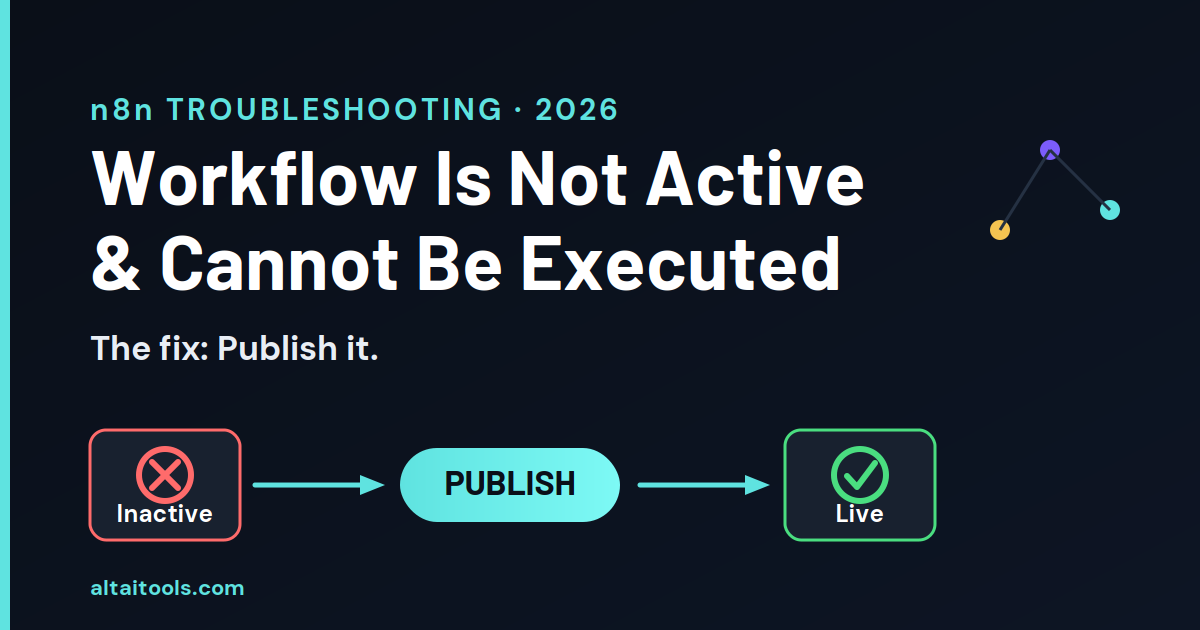
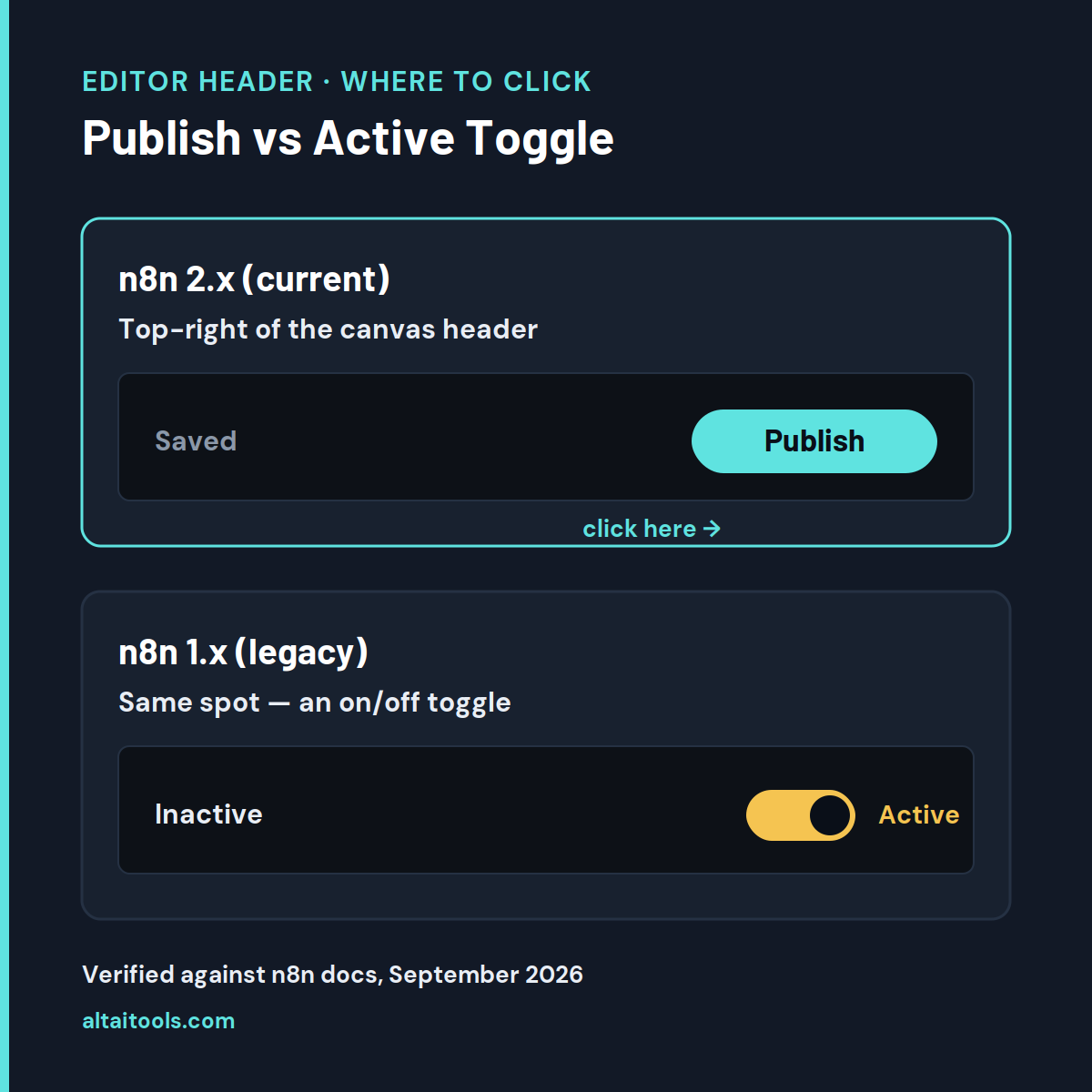
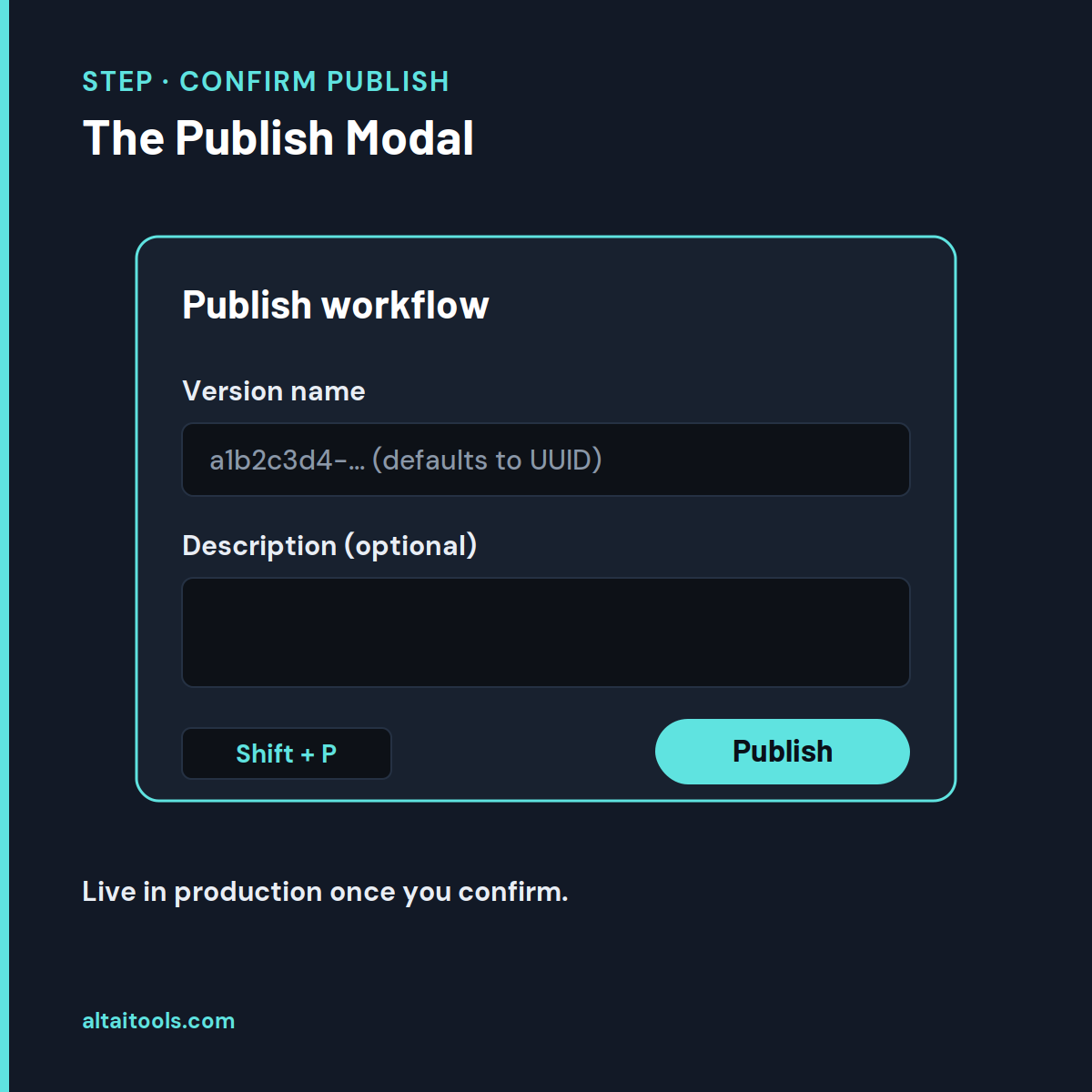
If n8n says “Workflow is not active and cannot be executed,” the workflow - or the sub-workflow it calls - has not been published, and publishing it fixes the error in most cases. On n8n version 2.x, “publishing” is activating: the old Active toggle is gone, replaced by a Publish button in the top-right of the editor. Click Publish (or press Shift + P), and the workflow goes live in production.
You’re here because something that worked yesterday suddenly throws a red error, or a brand-new workflow refuses to run no matter what you click - and you’ve probably already hit “Execute workflow,” seen it work, and gotten more confused. That’s the trap: the manual run button ignores the active state entirely, so the workflow looks fine while production stays dead. The fix is almost always one of six things, and the most common one takes about thirty seconds.
Quick fix (the short version):
- Most common cause: the workflow (or the sub-workflow it calls) isn’t published. Open it and click Publish in the canvas header. This resolves the largest share of these errors.
- On n8n 2.x there is no “Active” toggle anymore - look for the Publish button and the Saved indicator instead.
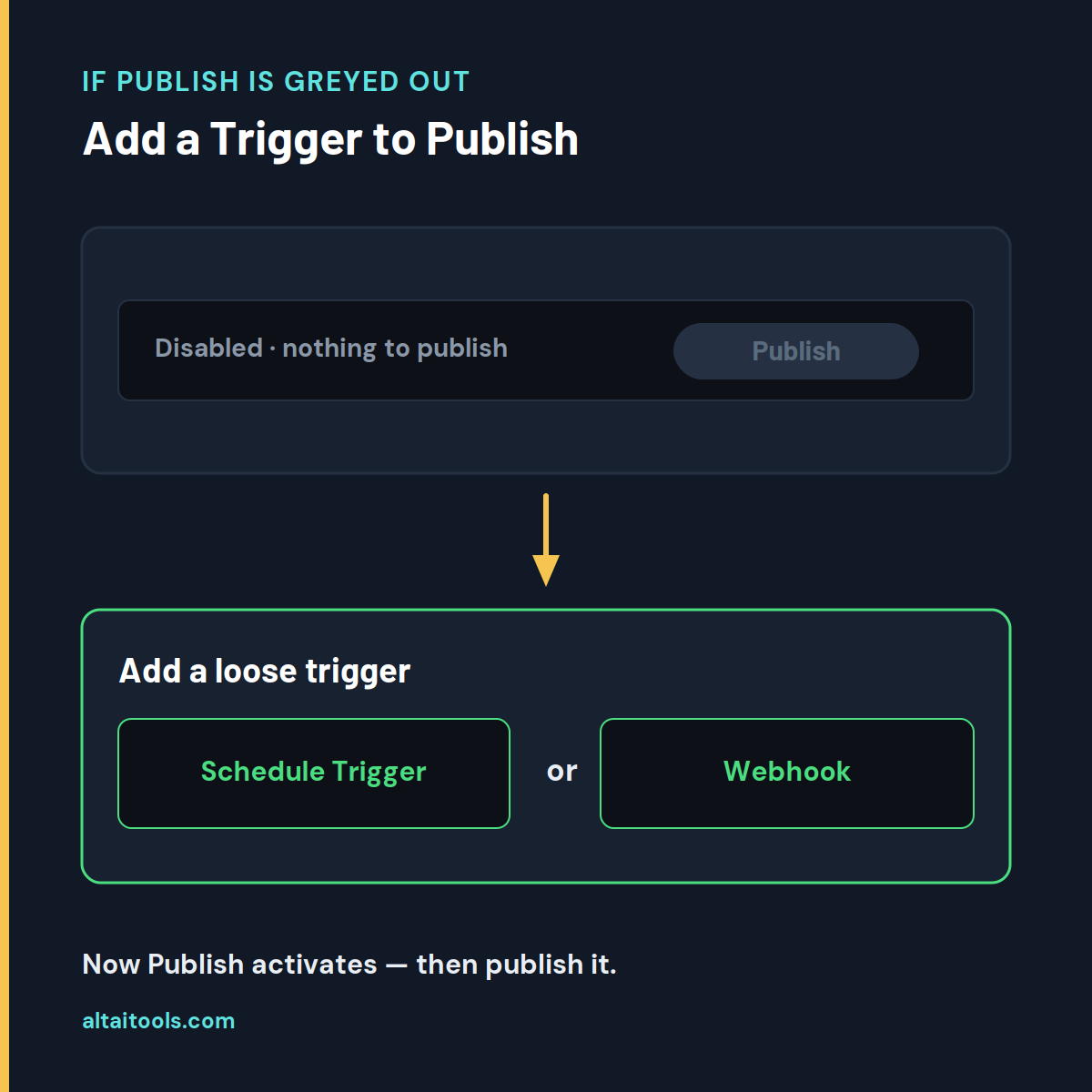
- If Publish is greyed out, the workflow has no unpublished changes (n8n disables Publish until you edit something) or has no trigger that requires publishing. If it is the latter, add a real trigger node (Schedule, Webhook, or “When executed by Another Workflow”), then publish.
- Time to fix: under 5 minutes for all but server-level cases.
- Applies to: n8n Cloud, self-hosted Docker, and npm - free/community edition included.
Before you start: what “active” actually means in n8n
A workflow only runs on its own - on a schedule, a webhook, or a call from another workflow - when it is published (active). Manual runs bypass this entirely. That single fact explains most of the confusion behind this error.
n8n has two ways to run a workflow, and they behave differently:
- Manual runs - the Execute workflow / Test workflow button in the editor. These run the workflow regardless of whether it’s active. This is why your workflow “works when I test it” but does nothing in production.
- Production runs - triggered automatically by a Schedule Trigger, a Webhook, an app event, or an Execute Workflow Trigger. These only fire when the workflow is published/active.
According to n8n’s official documentation, publishing a workflow is what enables its production behaviour: webhook and form triggers switch to their production URLs, schedules start running at the times you set, and events from connected apps begin triggering the workflow (docs.n8n.io, verified September 2026).
One version note before the fixes, because it trips up almost everyone in 2026: n8n changed this UI in the version 2.0 line (December 2025). If you’re on 2.x you’ll see a Publish button; if you’re on an older 1.x install you’ll see an Active toggle. The fixes below cover both, and the difference is exactly where most competitor guides go stale - they still tell you to click a toggle that no longer exists.
The fastest way to diagnose it: the Publish → Trigger → Register ladder
Before the individual fixes, here’s the mental model that orders them. A workflow has to clear three checkpoints before it runs in production, and they fail in a predictable order of likelihood. We call it the Publish → Trigger → Register ladder:
- Publish - Is the workflow (and any sub-workflow it calls) actually published/active?
- Trigger - Is there a real trigger node, and is it genuinely firing?
- Register - Is that trigger registered in production (correct URL, not a stale registration)?
Climb from the top. The rungs are ordered by how often each one is the real problem, so checking them in order gets you unstuck fastest.
We built that ordering from real reports, not guesswork. Across 15 first-hand n8n reports of this error (December 2024 - February 2026), the single most common root cause was a workflow or sub-workflow that was never published - 6 of the 15 accounts - followed by an active workflow whose trigger still wasn’t firing, in 4 of 15. (altaitools.com analysis of 15 community reports, 2026. Forum commenters self-select toward problems, so this reflects which causes generate the most help-threads, not overall failure rates.)
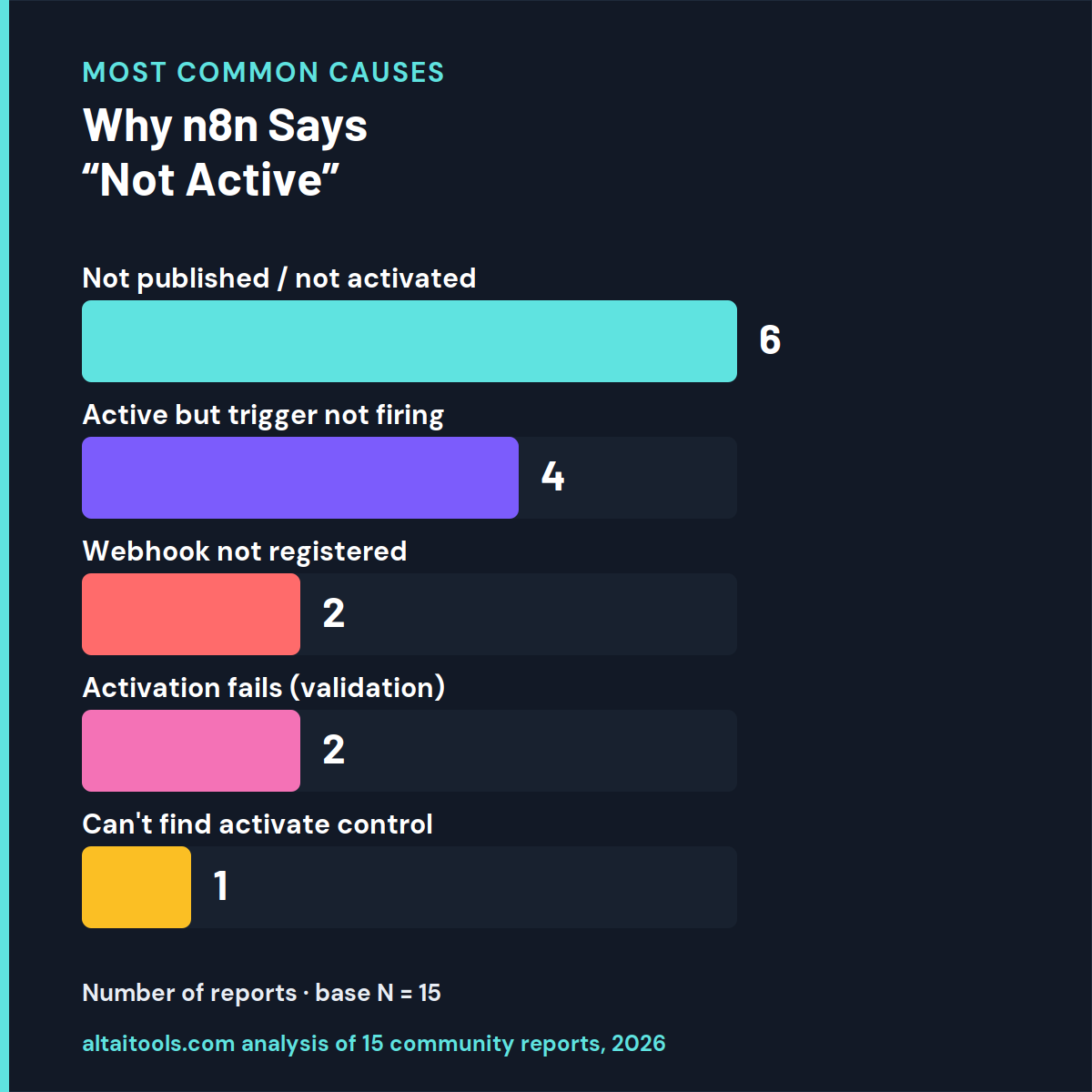
That chart is the whole page in one picture: fix the top bar first. Here’s the interactive version - answer two or three questions and it points you to the exact cause and fix below.
Why won’t your n8n workflow run?
1. What do you see in the top-right of the editor?
Now the fixes, in ladder order.
Fix 1 - Publish the workflow (the #1 cause)
Open the workflow and click Publish in the top-right of the editor. On n8n 2.x this is what makes the workflow active; the error disappears once the workflow is live. This is the first thing to check because it’s the most common cause by a clear margin.
Steps on n8n 2.x (current version):
- Open the workflow in the n8n editor.
- Look at the top-right of the canvas header for the Publish button.
- Click Publish (or press
Shift + P) to open the publishing modal. - Leave the version name as the default UUID, or type your own name, then click Publish.
- Confirm the header now shows the workflow as published and up to date.
If you don’t see a Publish button and only see an Active toggle, you’re on n8n 1.x - click the toggle in the top-right so it turns orange. Same outcome, older UI.
If you don’t see any activate control at all - only Publish and Saved - that’s normal on 2.x. The Saved label just means your draft is autosaved (n8n saves automatically within 1 to 5 seconds; there’s no manual save button on 2.x). Saved is not the same as published. You still have to click Publish for the workflow to run in production.
One thing worth knowing so a later edit doesn’t silently break production: publishing locks the workflow to a specific version, and production always runs that published version - not your latest draft edits. If you tweak an active workflow and it seems to ignore your change, you simply haven’t re-published. Click Publish again to push the new version live.
Fix 2 - Publish the sub-workflow (the n8n 2.0 migration trap)
If the error appears on an “Execute Workflow Trigger” node after upgrading to n8n 2.0, the sub-workflow being called now has to be published - it didn’t in 1.x. Publish the sub-workflow and the parent runs again. This applies specifically to workflows that call other workflows.
This one caught a lot of people during the 1.x → 2.0 migration. In older versions a sub-workflow could start from a plain Manual Trigger and still be callable. n8n 2.0 tightened this: the sub-workflow needs the correct start node and it has to be published.
Do this:
- Open the sub-workflow (the one being called).
- Make sure its first node is “When executed by Another Workflow” (the Execute Sub-workflow Trigger node), not a bare Manual Trigger.
- Click Publish.
- Return to the parent workflow and run it again.
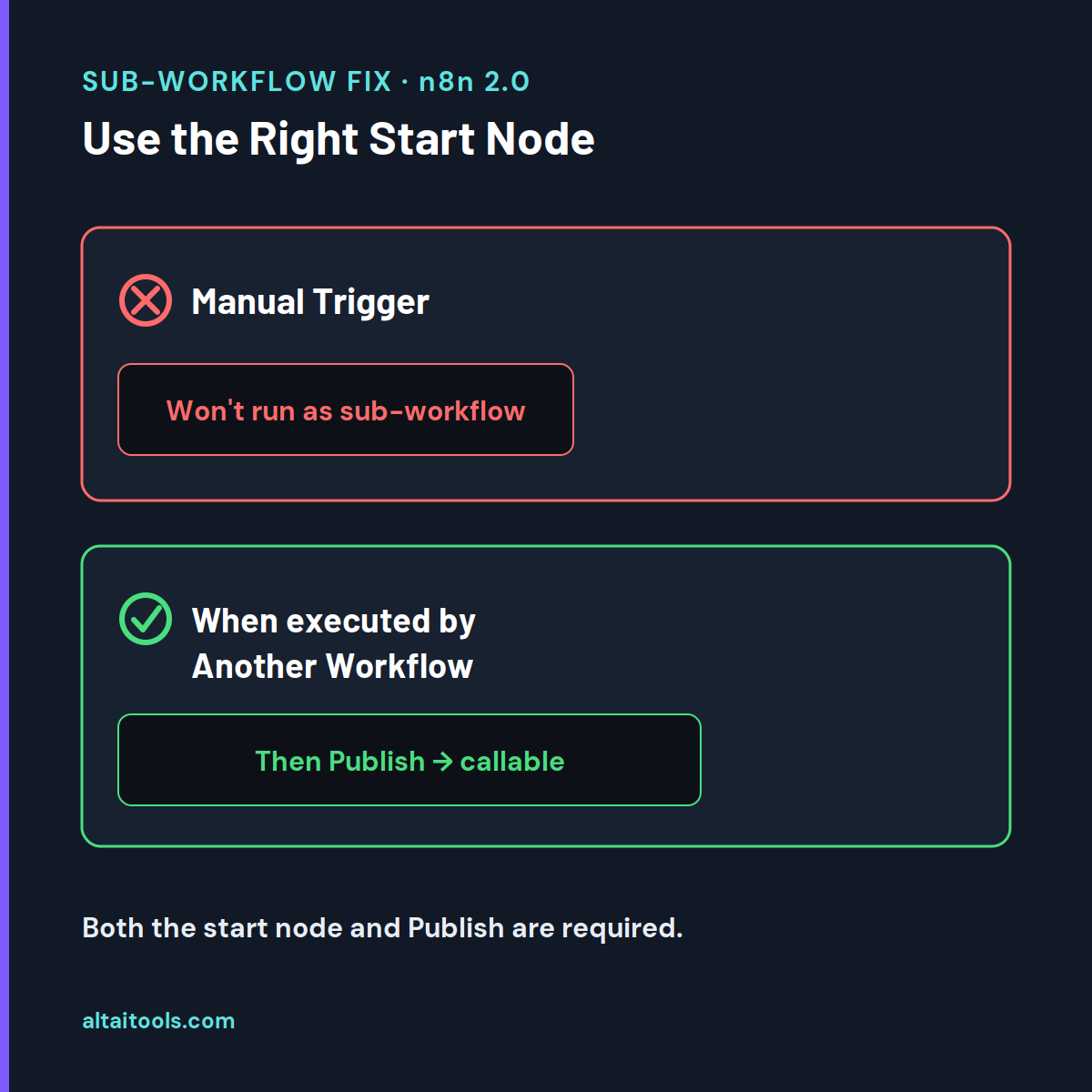
If the sub-workflow won’t publish because Publish is greyed out, it has no trigger that “requires” publishing - n8n’s own docs describe this as the “Published, invalid changes” state, meaning no trigger requires publishing (docs.n8n.io, verified September 2026). The community workaround, confirmed by multiple users, is to add a loose trigger node - a Schedule Trigger or a Webhook - anywhere on the canvas. That makes the workflow publishable; publish it, and the sub-workflow becomes callable. One user reported the correct-start-node step alone didn’t fix it and the loose-trigger workaround was what worked, so try both if the first doesn’t take.
If your setup routinely calls sub-workflows, it’s worth understanding how n8n structures these builds compared to alternatives - our breakdown of n8n vs Node-RED covers how each tool handles multi-flow orchestration.
Fix 3 - Use the trigger, not the manual run button
If the workflow is published but only runs when you click “Execute workflow,” it has no working automatic trigger - a manual run ignores the active state, so it always works and hides the real problem. Check that the workflow actually starts from a real trigger node.
Every production workflow needs exactly one trigger node as its first node - a Schedule Trigger, a Webhook, an app trigger, or an Execute Workflow Trigger. A workflow that begins with a plain Manual Trigger can never run on its own; it can only be run by hand.
- Open the workflow and check the first node.
- If it’s a Manual Trigger, replace it with the trigger you actually need (Schedule, Webhook, or an app-specific trigger).
- Configure the trigger - for a Schedule Trigger, set the interval or cron expression; for a Webhook, note its Production URL.
- Publish the workflow.
Fix 4 - Fix a Schedule Trigger that isn’t firing on an active workflow
If the workflow is active but the Schedule Trigger never fires, the usual causes are a wrong workflow timezone or a self-hosted instance that needs a restart to pick up the schedule. This is the “active but not running” case - checkpoint two on the ladder.
Reported patterns from real users:
- Timezone mismatch. The Schedule Trigger uses the workflow’s timezone, set under Options → Settings → Timezone (default is New York / EDT). If your schedule runs at the wrong hour or not at all, confirm this setting matches your intent.
- Self-hosted schedules not registering. On self-hosted Docker/npm instances, schedule triggers occasionally don’t arm until the workflow is re-published or the instance restarts. Re-publish first; restart the container only if that fails.
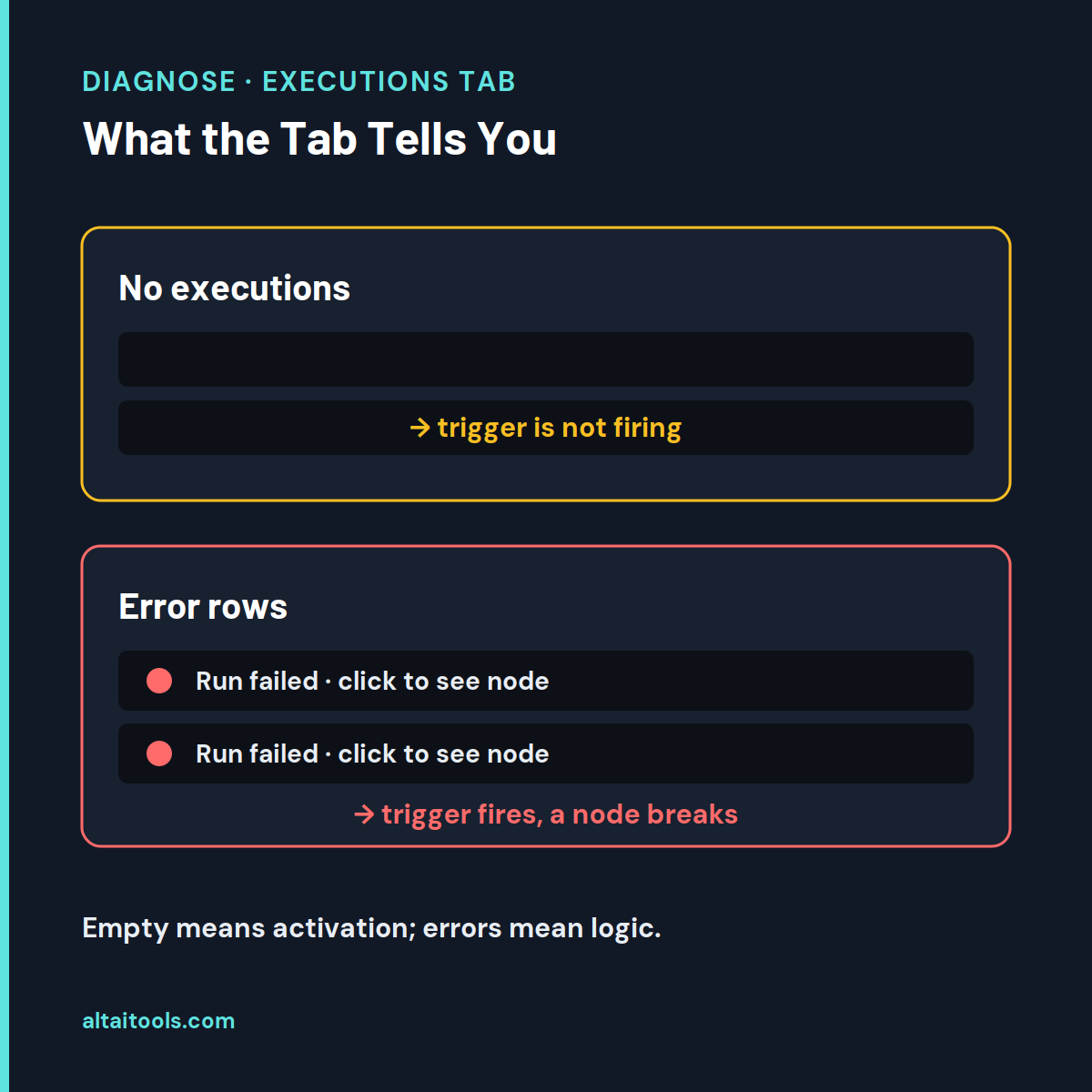
- Nothing in Executions. If the Executions tab shows no runs at all, the trigger isn’t firing - that’s a trigger problem, not a workflow-logic problem. Once the workflow is published and firing, a node can still fail partway through a run - a separate situation covered in our fix for “this node threw an error during execution”.
If you’re on a scaled (queue-mode or single-main) setup, trigger registration is handled by specific processes; a webhook or schedule that never registers can point to that architecture rather than the workflow itself.
Fix 5 - “The requested webhook is not registered” despite being published
If a webhook call returns “The requested webhook … is not registered” with the hint “The workflow must be active for a production URL to run successfully,” and the workflow IS published, the production webhook registration has gone stale - duplicate the workflow, delete the old one, and re-publish. This is a distinct symptom with its own fix.
First rule out the simple version: you must call the Production URL, not the Test URL. The Test URL only registers while the editor is open and you’ve clicked to listen for a test event; it will never work in a live integration. Copy the Production URL from the Webhook node and use that in your external service.
If you’re already using the Production URL and the workflow is published but still unregistered - a pattern reported especially when pushing workflows between instances via the n8n API - the confirmed fix is:
- Duplicate the affected workflow.
- Delete the original.
- Publish the duplicate.
- Update your external service with the new Production URL if it changed.
A reader who’s just gotten a webhook working is often comparing automation platforms anyway; if that’s you, n8n vs Flowise vs Langflow lays out where n8n’s webhook-and-trigger model is stronger or weaker than the node-based builders.
Fix 6 - When activation itself fails (“Validation Failed” / “no node to start the workflow”)
If clicking Publish or Activate throws “Workflow could not be activated: Validation Failed” or “has no node to start the workflow - at least one trigger, poller or webhook node is required,” the workflow is missing a valid trigger or contains a node error that blocks activation. Fix the trigger or the flagged node, then publish.
- “No node to start the workflow” means there’s no trigger, poller, or webhook node. Add a valid trigger node as the first node.
- “Validation Failed” usually points to a misconfigured node - an invalid credential, a broken expression, or a node showing a warning icon. Open each node with a warning and resolve it.
- Error Trigger workflows are a special case: an Error Trigger workflow does not need to be activated to work, but it still needs at least one trigger node present or it will refuse to activate. Per n8n’s docs, if a workflow uses the Error Trigger node you don’t have to activate it for error-handling to fire (docs.n8n.io, verified September 2026).
To set up proper error handling so silent failures don’t surprise you again: create a workflow with an Error Trigger as its first node, then open each important workflow’s Options → Settings and set that error workflow under Error Workflow. Now a production failure notifies you instead of failing quietly. If activation is blocked before you can even publish - with a message about the workflow having issues - that’s a validation problem in a node, explained in “the workflow has issues and cannot be executed”.
Verify it worked
Confirm the fix by watching the workflow run in production, not by clicking “Execute workflow.” A manual run proves nothing here - it works even when the workflow is inactive.
- Confirm the header shows the workflow as published / active (2.x) or the toggle is orange (1.x).
- Trigger it the real way - wait for the schedule, or send a request to the Production URL.
- Open the Executions tab and confirm a new run appears with success status.
- If an execution shows an error status, click it to see which node failed and why - that’s now a node problem, not an activation problem.
If executions appear and succeed, the “not active and cannot be executed” error is resolved.
Why this error happens (the short explanation)
The error exists because n8n deliberately separates draft from production. Everything you do in the editor autosaves as a draft within 1 to 5 seconds, but drafts don’t run automatically - only the published version does. The 2.0 release made this split explicit by replacing the Active toggle with a Publish button and by requiring sub-workflows to be published too. Most reports of this error are simply that gap: the workflow was saved (draft) but never published (production). The manual run button, which ignores the split entirely, is what makes it so easy to miss.
Still not working?
If you’ve climbed all three rungs - published the workflow and its sub-workflows, confirmed a real firing trigger, and verified production registration - and it still won’t run, capture your n8n version and check the n8n community forum and GitHub issues for your exact version. Several activation bugs have been version-specific (for example, workflows that activate but immediately drop to a red “could not be started” state), so a version-matched bug report is often faster than more local debugging.
Frequently asked questions
What does “workflow is not active and cannot be executed” mean in n8n?
It means the workflow you’re trying to run - or a sub-workflow it calls - isn’t published, so n8n won’t execute it automatically. n8n only runs published (active) workflows in production. Publishing the workflow, via the Publish button on 2.x, clears the error in most cases.
Where is the Active toggle in n8n 2.x?
It’s gone. n8n replaced the Active toggle with a Publish button in the canvas header starting in the version 2.0 line (December 2025). Clicking Publish now does what the toggle used to: it makes the workflow live in production. Older 1.x installs still show the toggle.
Why does my workflow only have “Publish” and “Saved” buttons?
That’s the standard n8n 2.x interface. Saved means your draft is autosaved; Publish is what actually puts the workflow into production. Seeing only these two is not a bug - you’re on a current version. Click Publish to activate the workflow.
Why does my workflow run with “Execute workflow” but not on its own?
The Execute workflow button runs the workflow manually and ignores the active state, so it works even when the workflow is inactive. Automatic runs need the workflow published and a real trigger node. This mismatch is the number-one reason a workflow “works in testing” but does nothing live.
Do I have to publish sub-workflows in n8n now?
Yes, on n8n 2.0 and later. Sub-workflows called by an Execute Workflow Trigger must be published, and they need the “When executed by Another Workflow” start node. In n8n 1.x this wasn’t required, which is why the error appears right after upgrading.
Why is the Publish button greyed out?
The workflow has no trigger that requires publishing - n8n calls this the “Published, invalid changes” state. Add a real trigger node, such as a Schedule Trigger or Webhook, and the Publish button becomes active. A manual-trigger-only workflow can’t be published on its own.
What does “The requested webhook is not registered” mean?
It means n8n has no active production registration for that webhook URL. Either you’re calling the Test URL instead of the Production URL, or the production registration went stale. Confirm you’re using the Production URL; if the workflow is published and it still fails, duplicate the workflow, delete the old one, and re-publish.
Can a workflow stop executing after an n8n update?
Yes. Updates sometimes change node types or tighten requirements - the 2.0 sub-workflow publishing change is a clear example. After any major update, re-check your active workflows for warning icons on nodes and confirm each is still published under the new version’s rules.
Does an Error Trigger workflow need to be activated?
No. Per n8n’s documentation, a workflow that uses the Error Trigger node doesn’t need to be activated for it to catch failures from other workflows. It does, however, still need a valid trigger node present, or n8n will refuse to activate it if you try.
Is the fix different on n8n Cloud versus self-hosted?
The publishing step is identical on n8n Cloud, Docker, and npm. Server-level causes differ: schedule triggers not firing and stale webhook registrations show up mainly on self-hosted instances, where a re-publish or container restart can be needed. Cloud handles that layer for you.
What’s the difference between the Test URL and the Production URL?
The Test URL only works while the editor is open and listening for a test event - it’s for debugging. The Production URL works whenever the workflow is published. Live integrations must use the Production URL; using the Test URL in production is a common cause of webhooks that silently never fire.
Why does my workflow show a red state right after I activate it?
A red “active but could not be started” state usually means the trigger failed to register - often an invalid credential in the trigger node or a server-side registration problem. Open the trigger node, revalidate its credentials, re-publish, and check the Executions tab for the specific error.