When n8n shows “The workflow has issues and cannot be executed for that reason. Please fix them first,” it almost always means one of your nodes failed a validation check before the workflow started - usually a required field left empty, a missing or expired credential, or a disabled node sitting in the path - and the fastest fix is to find the node marked with a red dot and resolve what it’s flagging.
This is not a runtime crash and it is not a broken install. n8n refuses to start the run because a node is in an invalid state, and it shows the same generic message no matter which node is the culprit.
If you’re reading this, the maddening part is probably not the error itself - it’s that n8n won’t tell you where the problem is. You’ve likely already re-saved the workflow, maybe deleted and re-added a node, and it still throws the same line with a blank canvas staring back at you.
That specific frustration - “it says there’s an error but doesn’t show me what” - is the single most common thing people report about this message, so you’re in the right place, and it’s almost always fixable in a couple of minutes once you know where n8n hides the flag.
Reassurance first: you almost certainly haven’t broken anything. The workflow logic is fine; one node just needs a field filled, a credential reconnected, or to be switched back on. Nothing here requires reinstalling n8n or touching your server.
Quick answer: the fastest fix
Open your workflow and look for the node with a small red dot or warning icon on it - that node holds the issue. Click it, and n8n will highlight the specific field that’s empty, invalid, or missing a credential. Fill or fix that field, save the workflow, and run it again. If you can’t spot a red dot anywhere on the canvas (this is common, and it’s why so many people get stuck), open the Executions tab or your server logs to surface the failing node - the steps for that are below.
What this error means, in one line: n8n runs a pre-execution validation pass over every node - checking configurations, connections, and expressions - and if any node returns an error-level issue, it blocks the whole workflow rather than running a broken step. Deploying a broken workflow would cause runtime errors in production, so n8n validates for error-level issues before the workflow ever starts.
The Validation Gate: how to think about this error
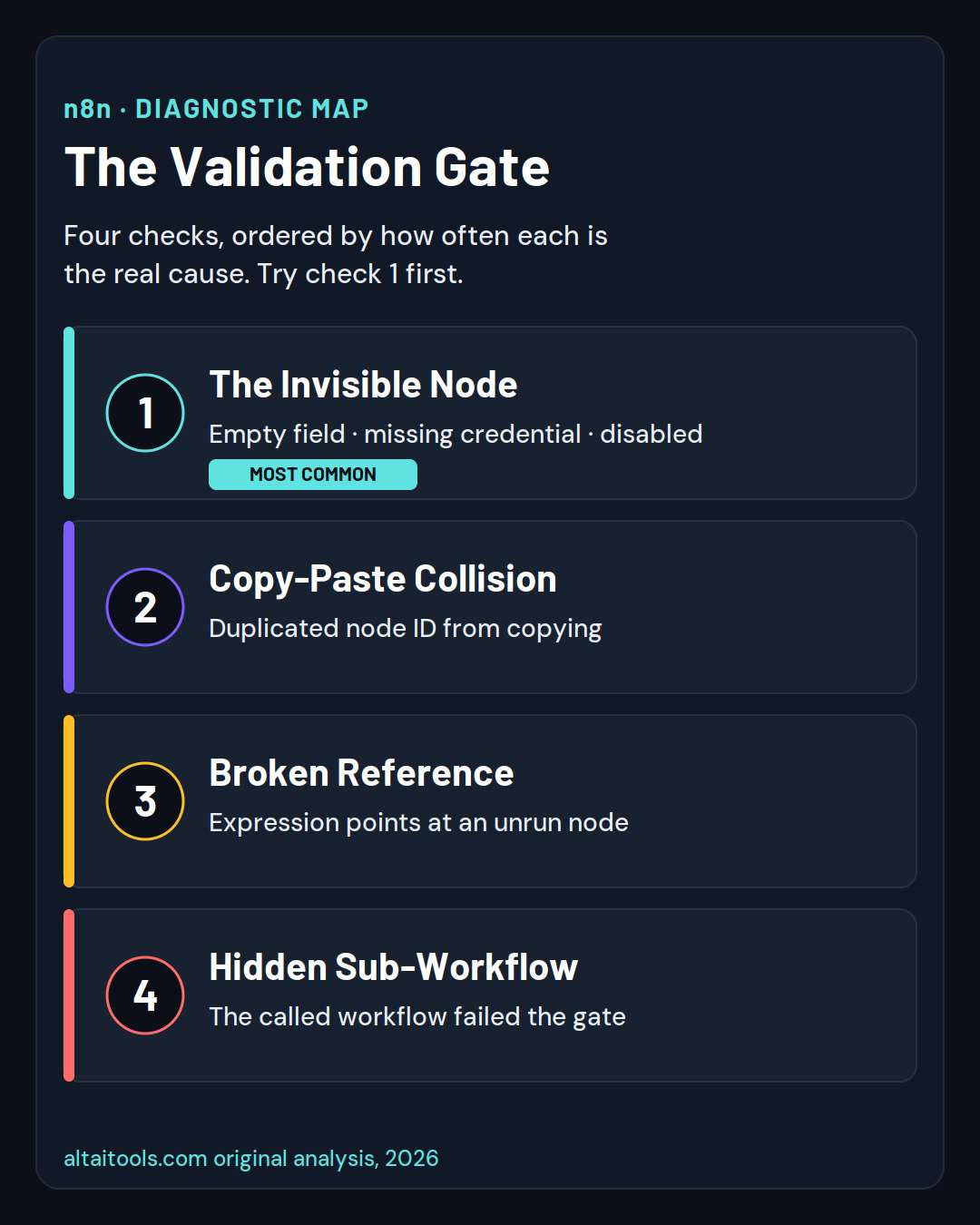
Think of your workflow as passing through a validation gate before it’s allowed to run. n8n inspects every node - required parameters, credentials, node connections, and expressions - and if any node fails the check, the gate stays shut and you get “the workflow has issues and cannot be executed.” Your job is simply to find which node failed the gate. There are four checks a node can fail, and they’re ordered below from most common to least so you spend your time where the fix usually is.
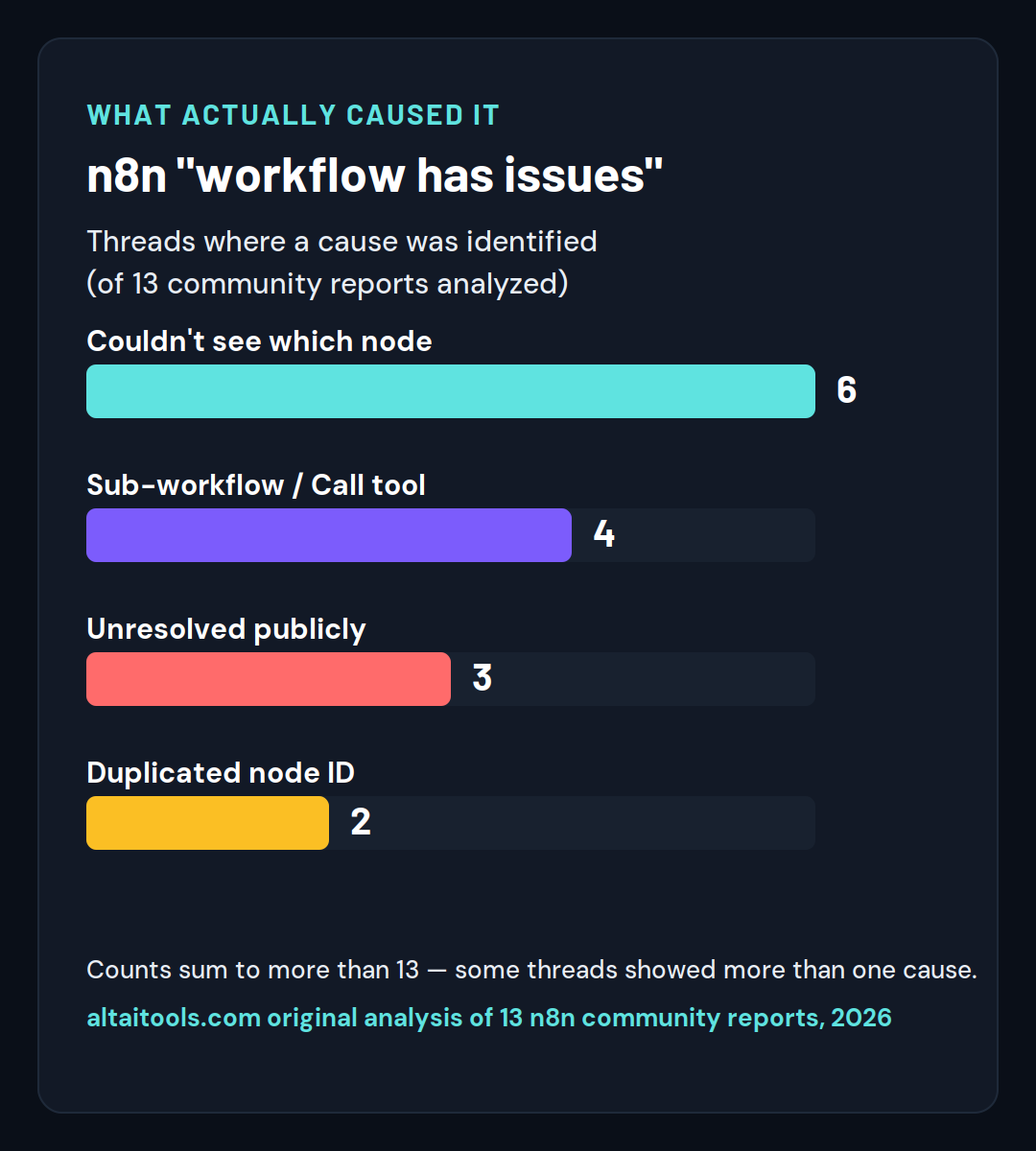
This ordering isn’t arbitrary. Across the 13 n8n Community threads reporting this exact error that I reviewed (as of September 2026), the single most common situation - roughly 6 of those 13 accounts - wasn’t an exotic bug at all: it was that the person simply couldn’t see which node was invalid, because the flag was a small icon they’d missed or a saved-state issue that didn’t show on the canvas.
The next-largest cluster, about 4 of 13, involved a sub-workflow or the Call n8n Workflow Tool. A smaller set traced to a duplicated node ID from copy-pasting. (altaitools.com analysis of 13 n8n community reports, 2026 - a read of the threads reviewed, not a population statistic. Forum commenters self-select toward the hardest cases, so treat this as friction signal, not a survey.) That’s why Gate Check 1 comes first: it’s where the answer usually is.
Gate Check 1 - The Invisible Node (the most common cause)
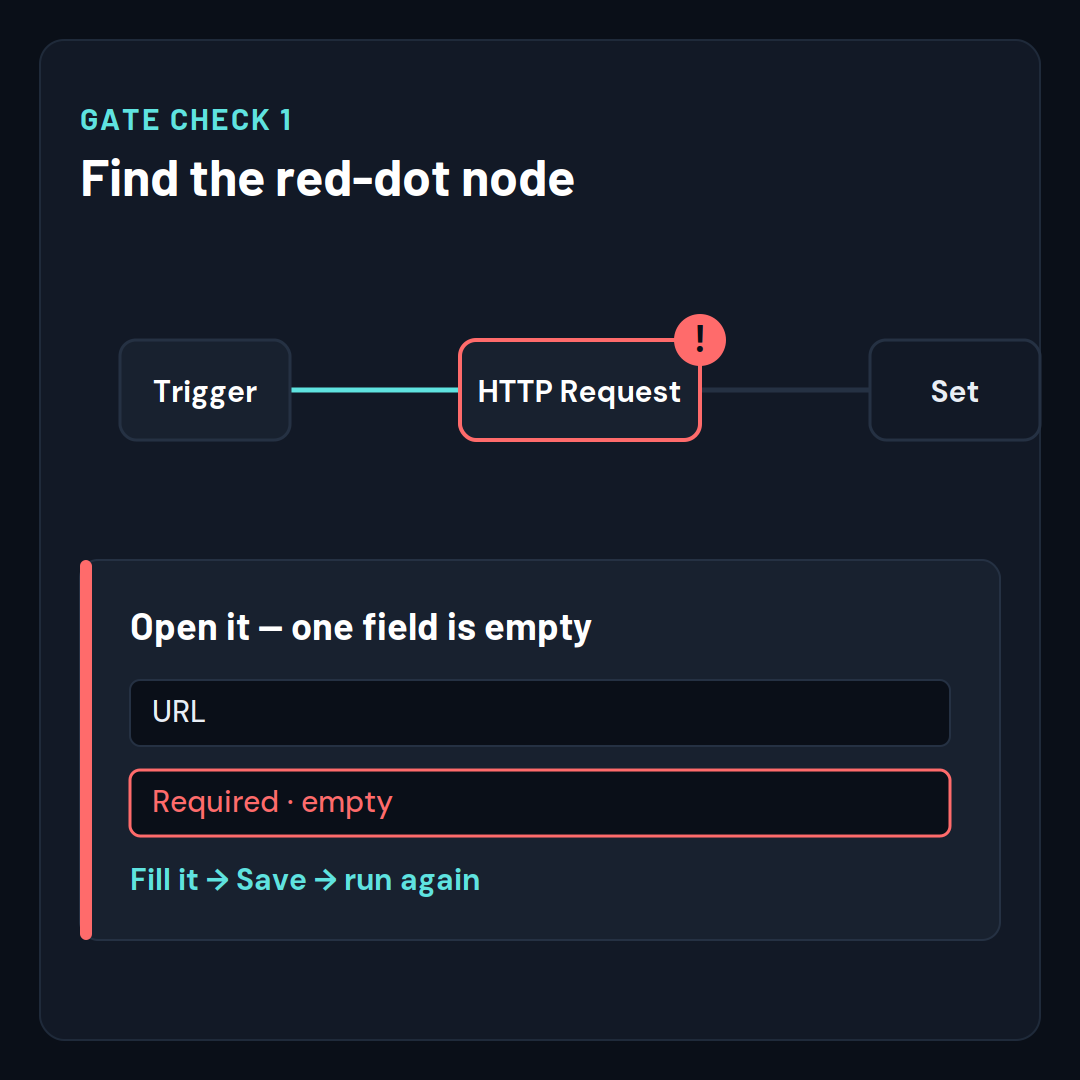
Fix 1 - Find the node with the red dot and fix what it’s flagging. In most cases this error comes from a single node that has a required field empty, a credential missing or expired, or an invalid value - and n8n marks that node with a small red or orange alert icon. This is the first thing to check because it’s the most frequent cause by a wide margin.
A node can fail this check in three ways:
1a - A required parameter is empty. Many nodes have fields that must be filled before the workflow can run - a URL on an HTTP Request node, a path on a Webhook node, code in a Code node. If one is blank, the node fails validation - the error commonly traces to required fields that are incomplete or set up incorrectly, so open the node and review every required field to make sure each is filled.
1b - A credential is missing or expired. If a node lost its credential (or the credential was never assigned), it fails the gate. This is easy to miss because the node otherwise looks configured.
1c - A node in the path is disabled. A disabled node that other nodes depend on can break the run. Re-enable it, or re-wire the workflow so the flow doesn’t route through it.
How to fix it:
- Open the workflow in the editor.
- Scan the canvas for a node showing a red dot or warning icon. Zoom out if your workflow is large so no node is off-screen.
- Click that node to open it.
- Fill any empty required field, reassign the credential from the Credential dropdown, or re-enable the node if it was disabled.
- Press Ctrl/Cmd + S to save.
- Run the workflow again.
If you don’t see any red dot: this is the exact spot most people get stuck - the flag can be a subtle icon, and in some cases (like a color-vision difference) it’s genuinely hard to spot. One forum user solved this only after realizing the alert symbols were there but they couldn’t see them.
Gate Check 2 - The Copy-Paste Collision
Fix 2 - If you copied this workflow or a node (especially a Webhook), delete the copied node and add a fresh one. When you duplicate a workflow or paste a node from another one, the node can carry over an ID that already exists elsewhere in your n8n instance. That collision makes the node fail validation, and it’s a cause competitors almost never mention.
This is the canonical answer n8n’s own team gives for the “works when built fresh, fails when copied” version of this error: the suspicion is that a copied node’s ID already exists elsewhere, and deleting the node and adding a new one from scratch generates a fresh ID that resolves it.
How to fix it:
- Identify the node you copied - most often a Webhook node.
- Delete it from the canvas.
- Add a brand-new node of the same type from the node panel (do not paste it).
- Reconfigure it manually with the same settings.
- Save and run again.
If it still fails after replacing the node: the collision wasn’t the (only) cause. Watch for a separate memory error in your logs - one user who hit this turned out to also be brushing against instance limits and started seeing JavaScript heap out of memory, which is a different problem entirely.
Gate Check 3 - The Broken Reference
Fix 3 - If a node uses an expression that points at another node, make sure that other node actually runs first. An expression that references a node which hasn’t executed yet fails validation, because the value it needs doesn’t exist at run time. This shows up most when you rearrange nodes or build branches.
According to n8n’s official documentation, the tell-tale message is “An expression references the node ‘<node-name>’, but it hasn’t been executed yet.” The documented fix is to either change the expression, or re-wire your workflow so that node executes first.
How to fix it:
- Open the node that failed and look at its expressions (fields with
{{ }}values). - Find any reference to another node by name.
- Confirm that referenced node sits earlier in the execution path.
- If it doesn’t, either re-wire the connection so it runs first, or rewrite the expression to pull from a node that does.
- Save and re-run.
Pre-empt: the same root cause - an expression referencing an un-executed node - also appears intermittently in sub-workflows that run fine most of the time and fail “once in a while.” If that’s your pattern, treat it as a data/timing issue in the reference, not a random glitch.
Gate Check 4 - The Hidden Sub-Workflow
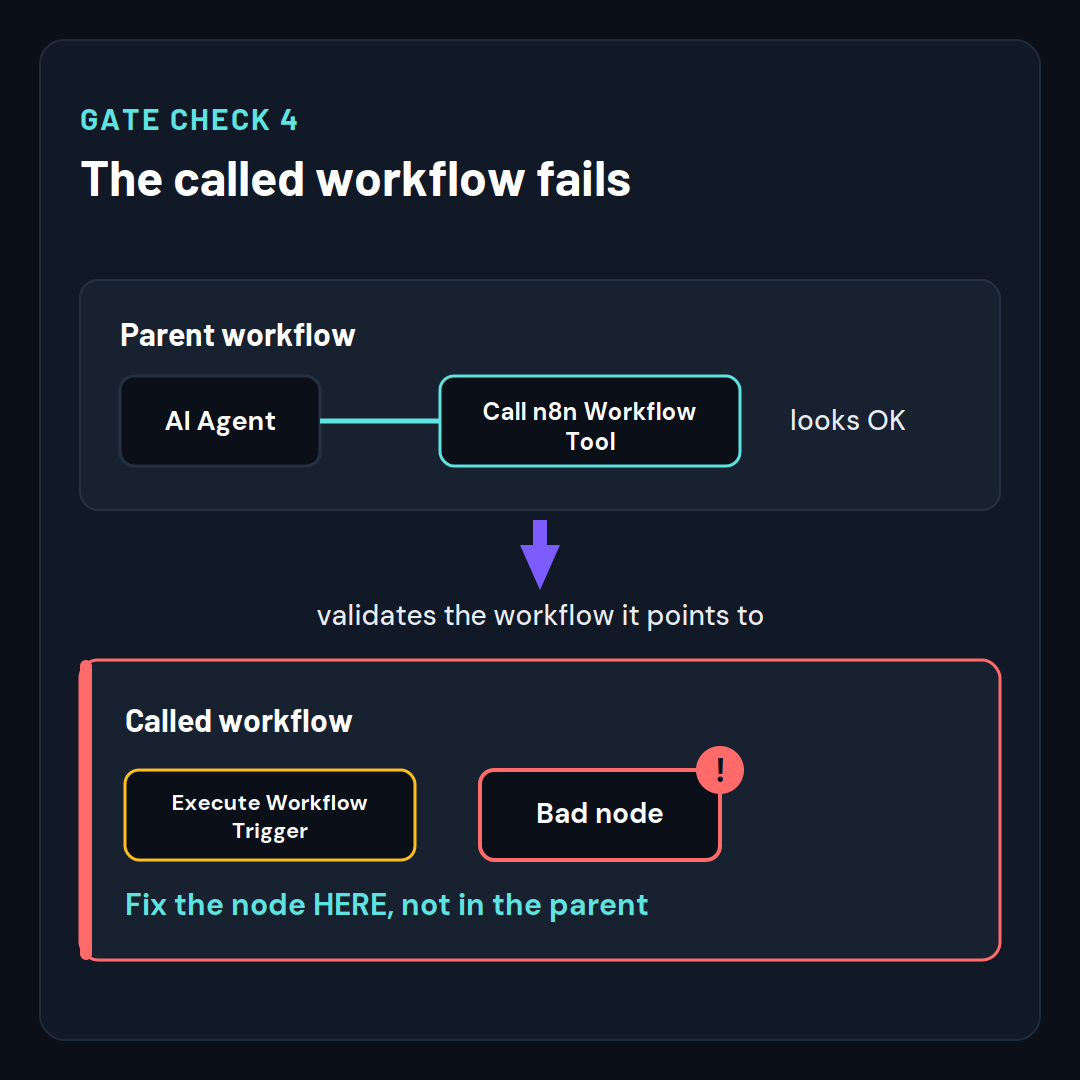
Fix 4 - If your workflow calls another workflow, the called one is what failed the gate - open it and fix its nodes. When you use an Execute Workflow node, an Execute Sub-workflow Trigger, or the Call n8n Workflow Tool inside an AI Agent, n8n validates the target workflow too. If that sub-workflow has an invalid node, the parent throws “the workflow has issues and cannot be executed” - but points you at nothing, because the real problem is in a workflow you’re not even looking at.
This is one of the fastest-growing versions of this error, especially with AI agents. In one recurring pattern, a workflow using an AI Agent with the Call n8n Workflow Tool node throws this exact message on every run - and the same thing happens across self-hosted setups on DigitalOcean and Render, which tells you it’s a configuration issue in the called workflow, not the hosting.
If your error is instead about connecting a model - not a workflow node - see our fix for n8n’s “the service couldn’t complete the test” error.
How to fix it:
- Note which workflow your Execute Workflow / Call n8n Workflow Tool node is pointing at.
- Open that called workflow directly.
- Run Gate Check 1 on it - find and fix the red-dot node there.
- Confirm the called workflow has a valid Execute Sub-workflow Trigger as its starting node.
- Save the called workflow, then return to the parent and run again.
If your sub-workflow works when you run it manually but fails when the parent calls it: that’s a known pattern - a sub-workflow that executes perfectly on its own can still fail validation when triggered by a parent, often because its trigger isn’t configured for being called. Open the sub-workflow, give it a proper Execute Sub-workflow Trigger, and test the parent again.
If this started right after upgrading n8n: the 1.x → 2.0 migration changed how sub-workflow triggers behave, and some users found sub-workflows that ran before the update stopped running after it. Re-open the Execute Sub-workflow Trigger in the affected sub-workflow and reconfigure it for the current version.
How to find the invisible node when n8n won’t show you
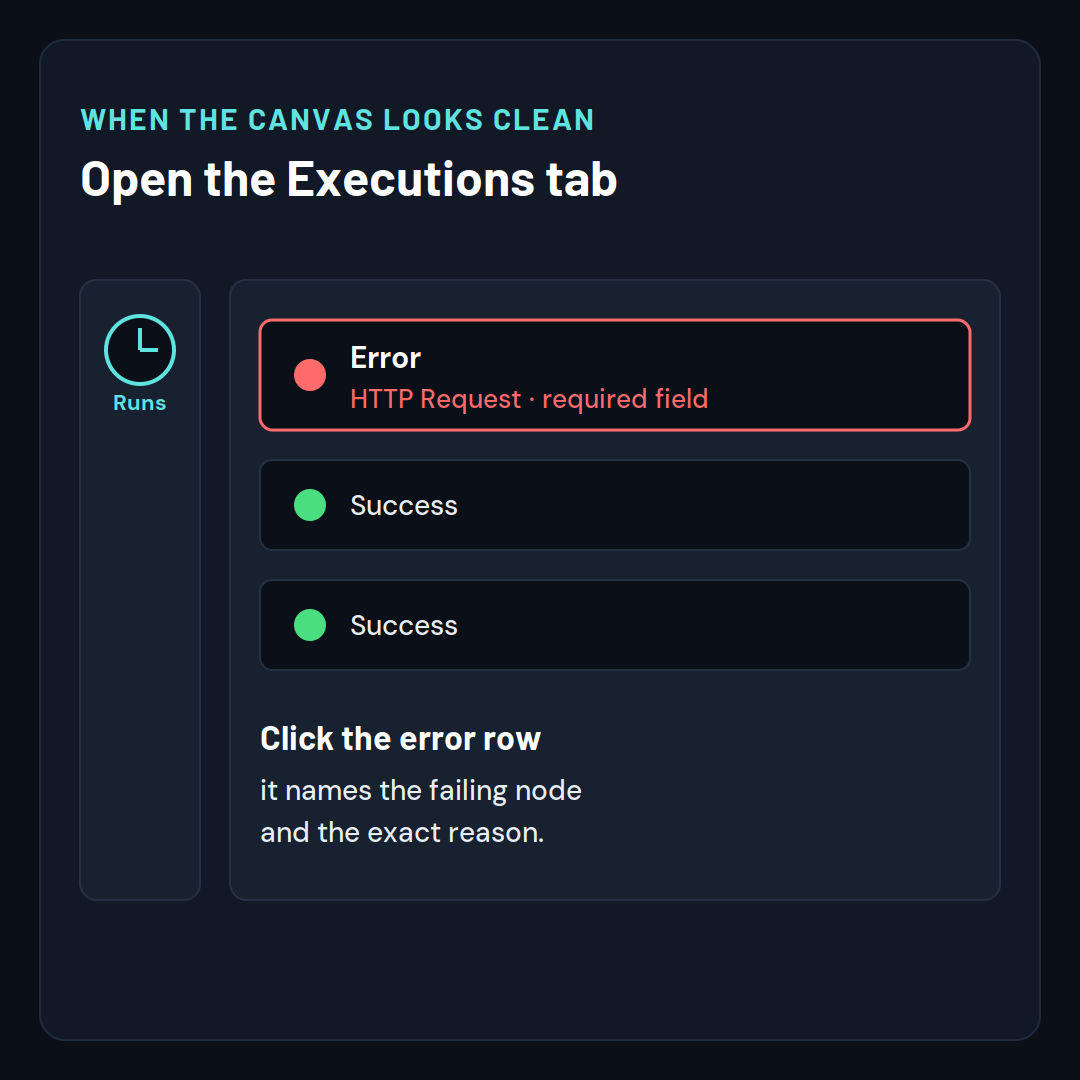
If the canvas looks error-free but the workflow still won’t run, surface the failing node through the Executions log or your server logs instead of hunting by eye. This is the step nearly every stuck user is missing, and it turns a generic error into a specific one.
Check the Executions log first:
- Click the Executions tab in the top menu of the workflow editor (or on the Overview page to see every workflow).
- Filter to this workflow. If you see runs with an error status, open one - it names the failing node and the reason.
- If you see no executions at all, the workflow never started (it failed the gate), so the issue is a node configuration, not a runtime error.
If executions are turned off or empty, enable logging and read the server logs. On self-hosted n8n, set the log level to debug so validation errors print to the console. According to n8n’s documentation, you configure this with environment variables:
Then read the logs for your deployment type:
The logs will point to the specific node or expression that failed validation, which sends you straight to the right Gate Check above. This gate blocks the run before it starts. A node that instead fails partway through an actual run is a different error, covered in “this node threw an error during execution”.
Why it works in Test but fails when Active or called
A workflow can pass a manual Test run and still fail the validation gate when you activate it or call it as a sub-workflow, because the active/production path validates more strictly than a manual test. This is why so many reports say “it works fine in test mode, but when I switch it to active I get this error.” The manual Test Workflow run is forgiving about state that the saved, active workflow is not.
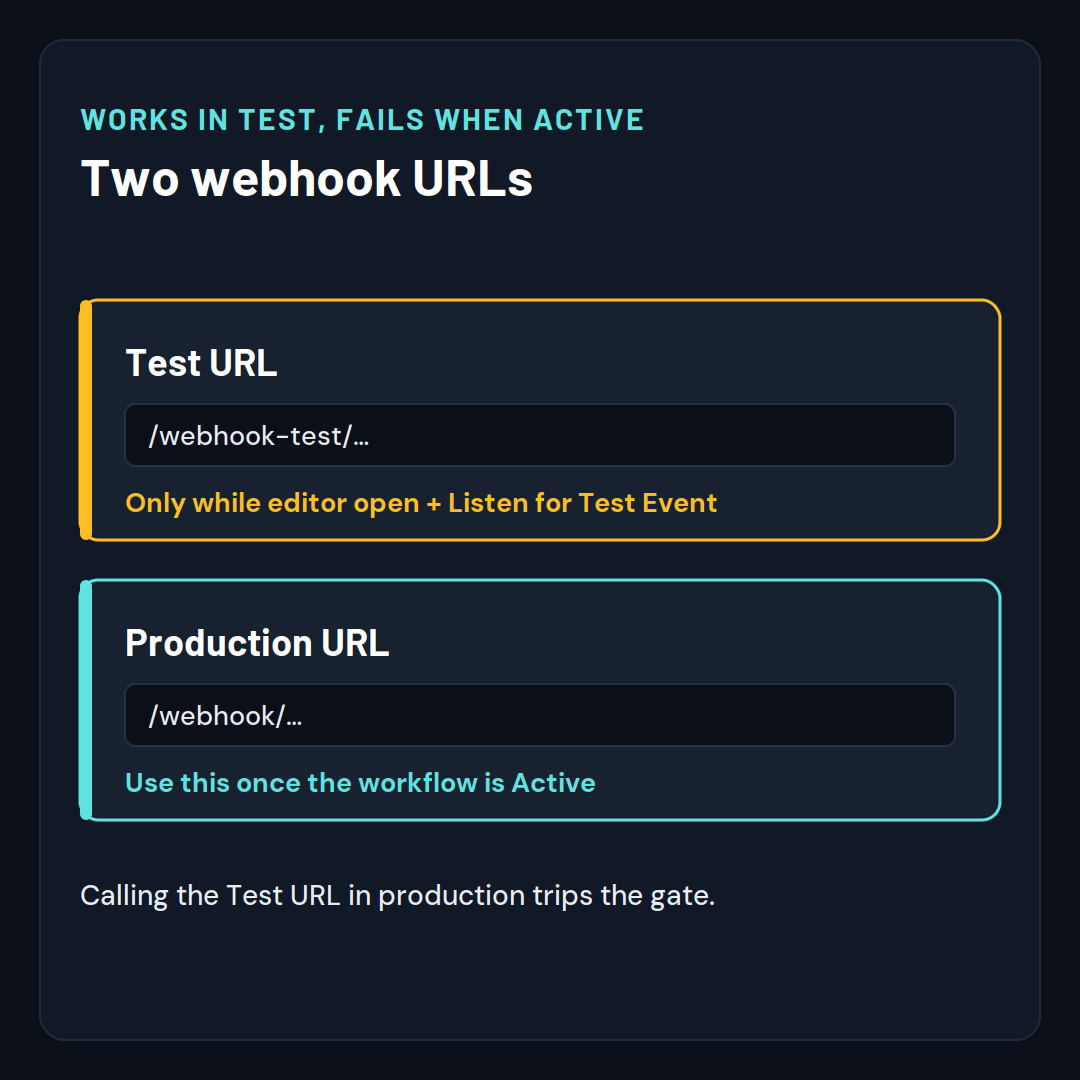
The most common version of this is the webhook test-vs-production URL trap. A Webhook node exposes two URLs: a Test URL that only works while the editor is open and you’ve clicked Listen for Test Event, and a Production URL that works once the workflow is active. If an external service calls the test URL in production, or the node is otherwise half-configured, the active workflow fails the gate while the test run seemed fine.
What to do: after your test run passes, publish the workflow by clicking Publish (on n8n 1.x, switch the Active toggle on instead), then trigger it through its real path - the Production URL for webhooks, or the schedule for a Schedule Trigger - and check the Executions log for the result. If activation itself is refused with a different message, “workflow is not active and cannot be executed,” that’s a related but distinct error about activation state, not node validation. That activation-state problem has its own fix - see “the workflow is not active and cannot be executed”.
Common mistakes that keep people stuck
The biggest mistake is treating this as a broken workflow and rebuilding it, when the fix is almost always one field in one node. Here’s what sends people down the wrong path, based on what actually gets reported:
- Copying the whole workflow to a new one. People try this first because it feels like a reset, but if the cause is a node-level validation issue, the copy carries it along - and a copied webhook can even add a duplicate-ID problem. Fix the node, don’t clone the workflow.
- Deleting and re-adding the webhook blindly. This is the right fix for a copy-paste ID collision - but only for that cause. If your issue is a missing credential three nodes downstream, replacing the webhook does nothing.
- Assuming the error will highlight the node. It often doesn’t, especially for saved-state and sub-workflow cases. That’s not a bug you can wait out - you have to go to the Executions log or server logs to see it.
- Checking whether the workflow is published first. An unpublished workflow (or an inactive one on n8n 1.x) produces a different message (“workflow is not active and cannot be executed”). If your message is “has issues and cannot be executed,” the publish state isn’t your problem - a node is.
Once your workflow runs cleanly, it’s worth building a safety net so the next silent failure doesn’t cost you hours. n8n lets you create a dedicated error-handling workflow with an Error Trigger node that fires whenever a production workflow fails, then routes the details to email or Slack. If you’re weighing whether n8n is the right long-term home for this kind of automation versus a lighter-weight tool, our comparison of n8n and Node-RED for automation breaks down where each one fits.
How to prevent this error going forward
The reliable prevention is to validate before you activate: fill every required field, assign credentials through n8n’s Credential system rather than pasting keys into node fields, and keep an Error Trigger workflow running. An independent analysis of roughly 6,000 public n8n workflows found that two of the most common ways people break their automations are pasting secrets like API keys directly into node parameters instead of using credentials, and building one giant monolithic workflow instead of smaller sub-workflows - both of which make validation errors harder to trace. (Third-party figure - verify the 6,000 count at the source before citing as fact.)
For teams building AI-agent automations where sub-workflow validation errors like Gate Check 4 crop up most, the choice of builder matters; our look at n8n vs Flowise vs Langflow for AI-agent workflows covers how each handles this category. And keep your instance current - n8n has shipped security fixes (including a patched expression-evaluation vulnerability, CVE-2025-68613) in recent releases, so running an up-to-date version avoids both bugs and behavior changes that can surface this error after the fact.
Still stuck after all four Gate Checks? Post your workflow JSON to the n8n Community forum with your n8n version, database, and how you’re running it (Docker, npm, or Cloud) - the details the forum template asks for are exactly what’s needed to spot a validation issue no one else can see from the outside.
Frequently asked questions
What does “please fix them first” actually want me to fix?
It’s telling you to resolve the node-level validation issues before it will run anything - not to fix your server or reinstall. In practice, “fix them first” means fill the empty required fields, reconnect missing credentials, and re-enable any disabled nodes flagged on the canvas. Once no node reports an issue, the message disappears.
Is “Problem running workflow” the same as this error?
Often yes. n8n frequently shows “Problem running workflow” as the heading and “The workflow has issues and cannot be executed for that reason” as the detail line underneath - they’re one event, not two. Treat the “Problem running workflow” banner as the same validation block and work through the node checks the same way.
Does this error behave differently on n8n Cloud versus self-hosted?
The error and its causes are identical on both, but your debugging tools differ. On n8n Cloud you rely on the Executions tab because you can’t reach server logs; on self-hosted (Docker or npm) you also have console logs via N8N_LOG_LEVEL. Cloud users on version strings like “1.76.1 (Cloud)” hit the exact same validation gate.
Can a Switch or IF node trigger this specific error?
Yes. Switch and IF nodes store their rules in a structured field that can become malformed - often after editing the workflow’s JSON directly or importing it - which fails validation. If the flagged node is a Switch or IF, delete and re-add its conditions in the editor rather than hand-editing them, then save.
I fixed the node but the error persists - what now?
Re-save the workflow explicitly with Ctrl/Cmd + S before re-running, because n8n validates the last saved state, not unsaved edits on the canvas. If it still fails, a second node may also be flagged, or a called sub-workflow is the real source. Check the Executions log to confirm which node the validation gate is still rejecting.
Why do I sometimes see EAI_AGAIN alongside this error?
EAI_AGAIN is a DNS-resolution failure, not a validation issue - it means your n8n instance couldn’t resolve a hostname a node was trying to reach. It’s a networking problem on your host or container, separate from the node-validation gate, and it’s fixed by sorting out DNS or connectivity, not by editing node fields.
Does a 401 error on a node cause this message?
A 401 means a node’s credential was rejected by the external service, which can leave that node in an invalid state that trips the validation gate. Re-authenticate or replace the credential on the failing node - a 401 points you straight to which credential is stale, so it actually helps you locate the culprit.
How do I reset or reconnect nodes if the error won’t clear?
Delete the connection lines feeding the flagged node and reconnect them, ensuring no required input is left unwired, then save. Disconnected or orphaned nodes are a common hidden cause. Avoid deleting and rebuilding the whole workflow - that rarely helps and can introduce a duplicate-ID problem on copied nodes.
Can I validate a workflow before running it to avoid this?
Yes - before activating, open each node once and confirm no red icon remains, every required field is filled, and every credential is assigned. Building in smaller sub-workflows rather than one large canvas also makes a failed validation far easier to trace, because there are fewer nodes to check when the gate rejects one.
Is it safe to keep other workflows running while one shows this error?
Yes. The error is scoped to the single workflow that failed validation; your other active workflows are unaffected and keep triggering normally. There’s no risk to your instance or data. Fix the flagged workflow whenever you’re ready - it simply won’t run until its invalid node is resolved.
Why does the workflow show as inactive but still seem to run an old version?
Some users hit a state where a workflow won’t fully activate yet an older saved version keeps firing - a known edge case usually tied to a specific version and a trigger that didn’t deregister. Update to a current n8n release, then unpublish the workflow and publish it again (on n8n 1.x: toggle it off, save, and re-activate) so the latest version is the one registered.
Is “cannot read properties of undefined (reading ‘execute’)” the same problem?
No - that’s a separate, lower-level error where no workflow runs at all, usually tied to a broken install or version mismatch rather than one invalid node. If every workflow, even a bare manual trigger, throws it, treat it as an instance-level problem and check your n8n version and installation rather than hunting for a single bad node.